Fortnite第6章最高のPC設定とFPSを高める方法
PEAKパフォーマンスのためにFortnite PC設定を最適化します
Fortniteの要求の厳しい性質は、フレームレートがイライラすることにつながる可能性があります。ただし、ゲーム内の設定を最適化すると、パフォーマンスが劇的に向上する可能性があります。このガイドは、よりスムーズで競争力のあるFortnite体験に最適なPC設定について詳しく説明しています。
表示設定:
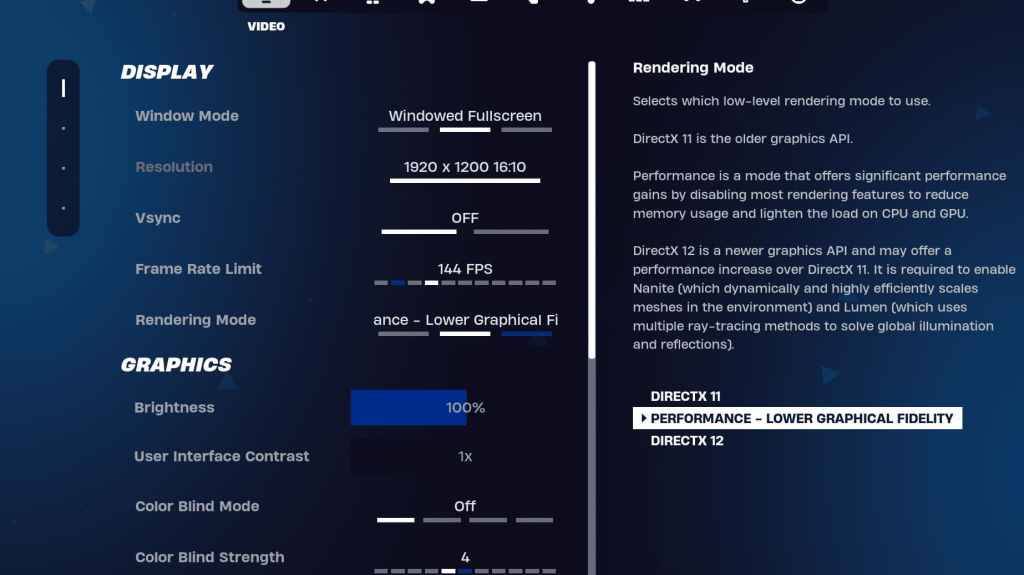
ディスプレイセクションはパフォーマンスに大きく影響します。推奨される構成は次のとおりです。
| Setting | Recommended |
|---|---|
| Window Mode | Fullscreen (best performance); Windowed Fullscreen (for frequent alt-tabbing) |
| Resolution | Native monitor resolution (e.g., 1920x1080). Reduce for lower-end PCs. |
| V-sync | Off (prevents input lag) |
| Framerate Limit | Monitor refresh rate (e.g., 144Hz, 240Hz) |
| Rendering Mode | Performance (highest FPS) |
説明されたレンダリングモード:
Fortniteは、パフォーマンス、DirectX 11、およびDirectx12。Directx11の3つのレンダリングモードを提供し、DirectX 12は新しいハードウェアで潜在的なパフォーマンスの向上を提供します。最大のFPSと最小ラグの場合、「パフォーマンス」モードはプロのプレーヤーの間で好ましい選択です。
グラフィック設定:
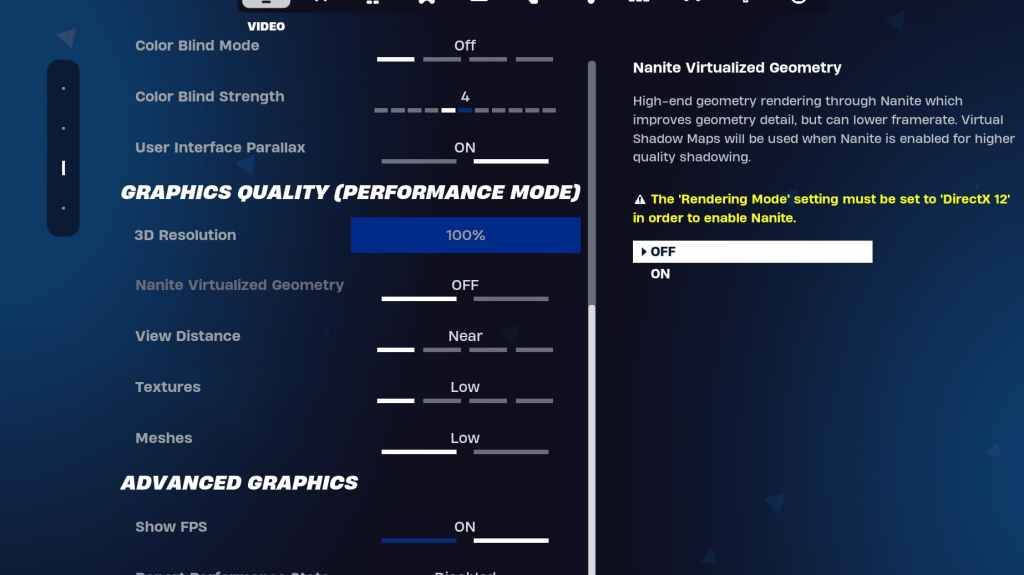
グラフィック設定は、視覚の品質とパフォーマンスに直接影響します。より良いフレームレートのために、より低いリソースの使用量を優先します:
| Setting | Recommended |
|---|---|
| Quality Preset | Low |
| Anti-Aliasing & Super Resolution | Off/Low |
| 3D Resolution | 100% (70-80% for low-end PCs) |
| Nanite Virtual Geometry (DX12) | Off |
| Shadows | Off |
| Global Illumination | Off |
| Reflections | Off |
| View Distance | Epic |
| Textures | Low |
| Effects | Low |
| Post Processing | Low |
| Hardware Ray Tracing | Off |
| Nvidia Low Latency Mode | On + Boost (Nvidia GPUs only) |
| Show FPS | On |
ゲーム設定:
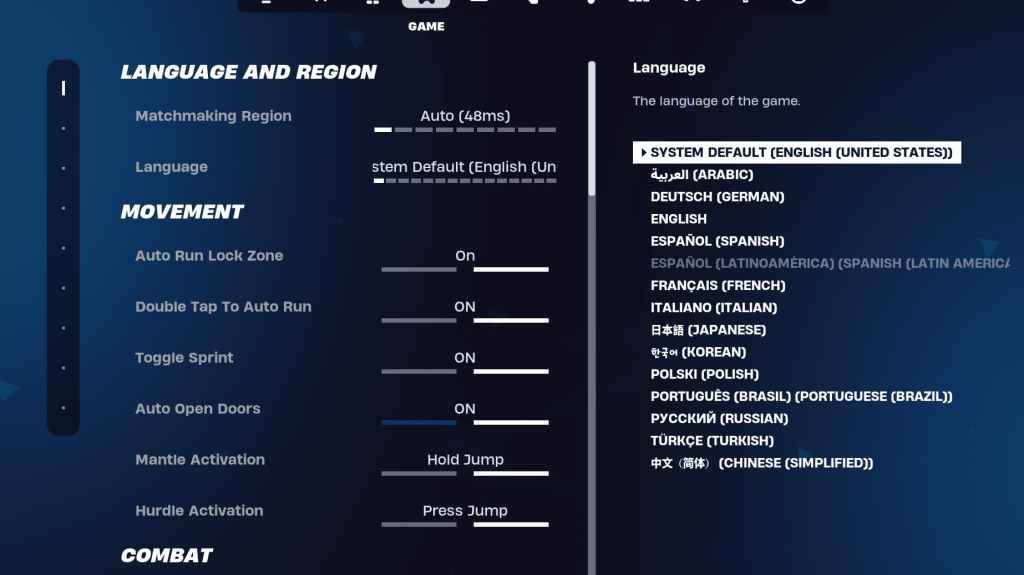
ゲーム設定はFPSに影響を与えませんが、ゲームプレイにとって重要です。これらを好みに合わせてカスタマイズしますが、以下を検討してください。
- ムーブメント:オートオープンドア:オン;ダブルタップして自動実行:on(コントローラー)
- 戦闘:スワップピックアップ:オン;トグルターゲティング:個人的な好み。オートピックアップ武器:オン
- 建物:ビルディングの選択肢をリセット:オフ;編集前のオプションを無効にする:off;ターボビルディング:オフ; Auto-Confirm編集:個人的な好み。簡単な編集:個人的な好み。タップして簡単な編集:on(簡単な編集がオンの場合)
オーディオ設定:
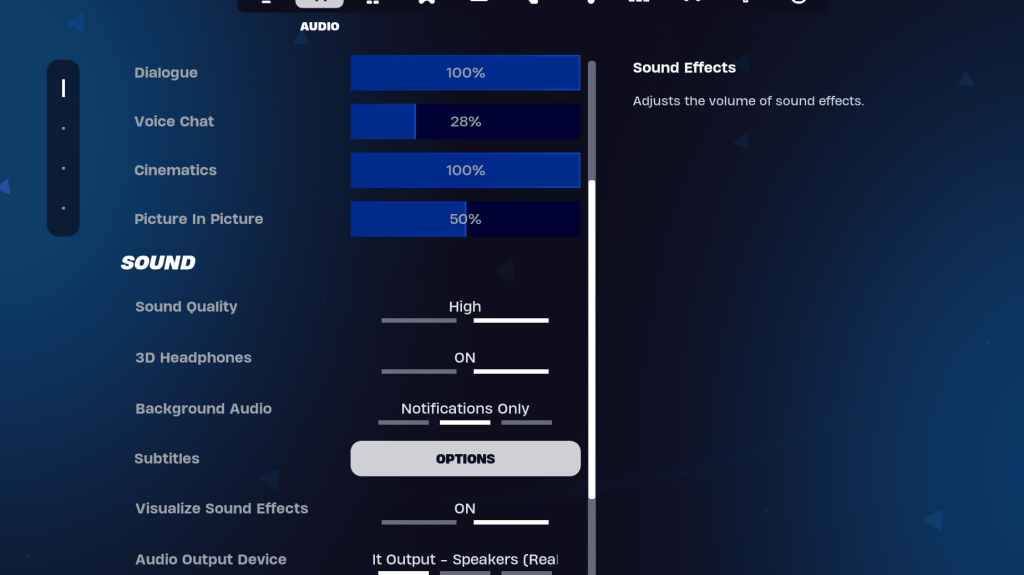
Fortniteでは良いオーディオが不可欠です。 3Dヘッドフォン(互換性の実験)を有効にし、サウンドエフェクトを視覚化して、空間認識を高めます。
キーボードとマウスの設定:
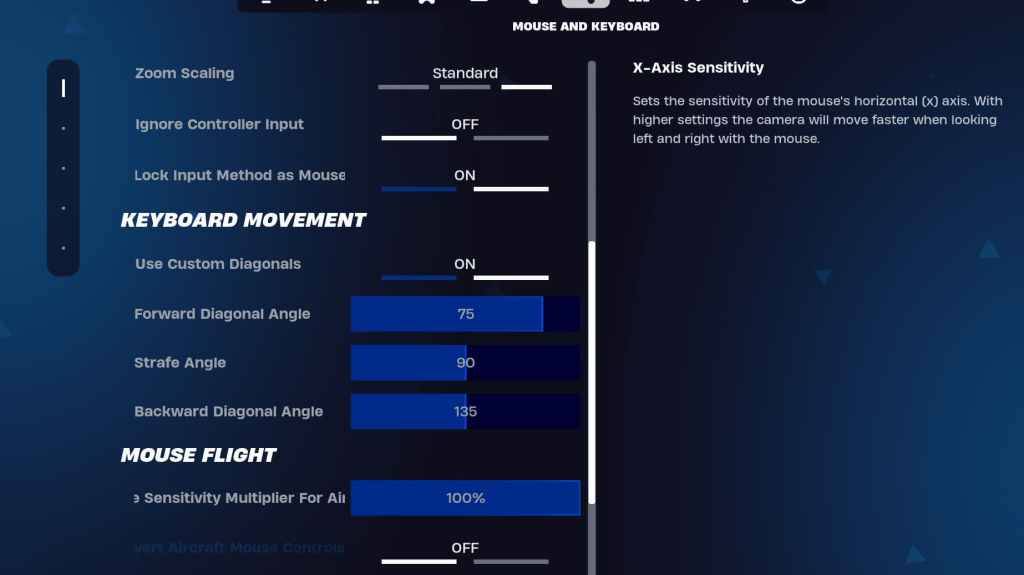
キーボードとマウスとキーボードコントロールタブで感度とキービンドを構成します。 X/Yの感度を調整し、感度(45-60%)、スコープ感度(45-60%)、および好みに対する感度の構築/編集を調整します。動きを改善するために、調整された角度を使用してカスタム対角線を使用することを検討してください。 Keybindsは主に個人的な好みです。
これらの設定を実装することにより、Fortniteのゲームプレイエクスペリエンスを大幅に向上させることができます。最適な設定は、特定のハードウェアによってわずかに異なる場合があることを忘れないでください。視覚的な忠実度とパフォーマンスの完璧なバランスを見つけるための実験。 Fortniteは、Meta Quest 2および3を含むさまざまなプラットフォームで利用できます。
最新記事
![1xBet [Updated]](https://imgs.yx260.com/uploads/76/1719623227667f5e3be7616.jpg)